How to use a dynamic populated drop-down list with vRA 7 default IaaS blueprints
With vRA 7, the functionality of the default IaaS blueprints are dramatically improved. One of the new cool features is the usage of dropdown lists populated…
With vRA 7, the functionality of the default IaaS blueprints are dramatically improved. One of the new cool features is the usage of dropdown lists populated by a vRealize Orchestrator action. This is something we have only seen before in ASD/XaaS blueprints. This blog article describes how to use this new cool feature. In my example I am going to create a drop-down list which query’s a specific vCenter folder for existing vSphere templates and returns them in the drop-down list on the request form.
-
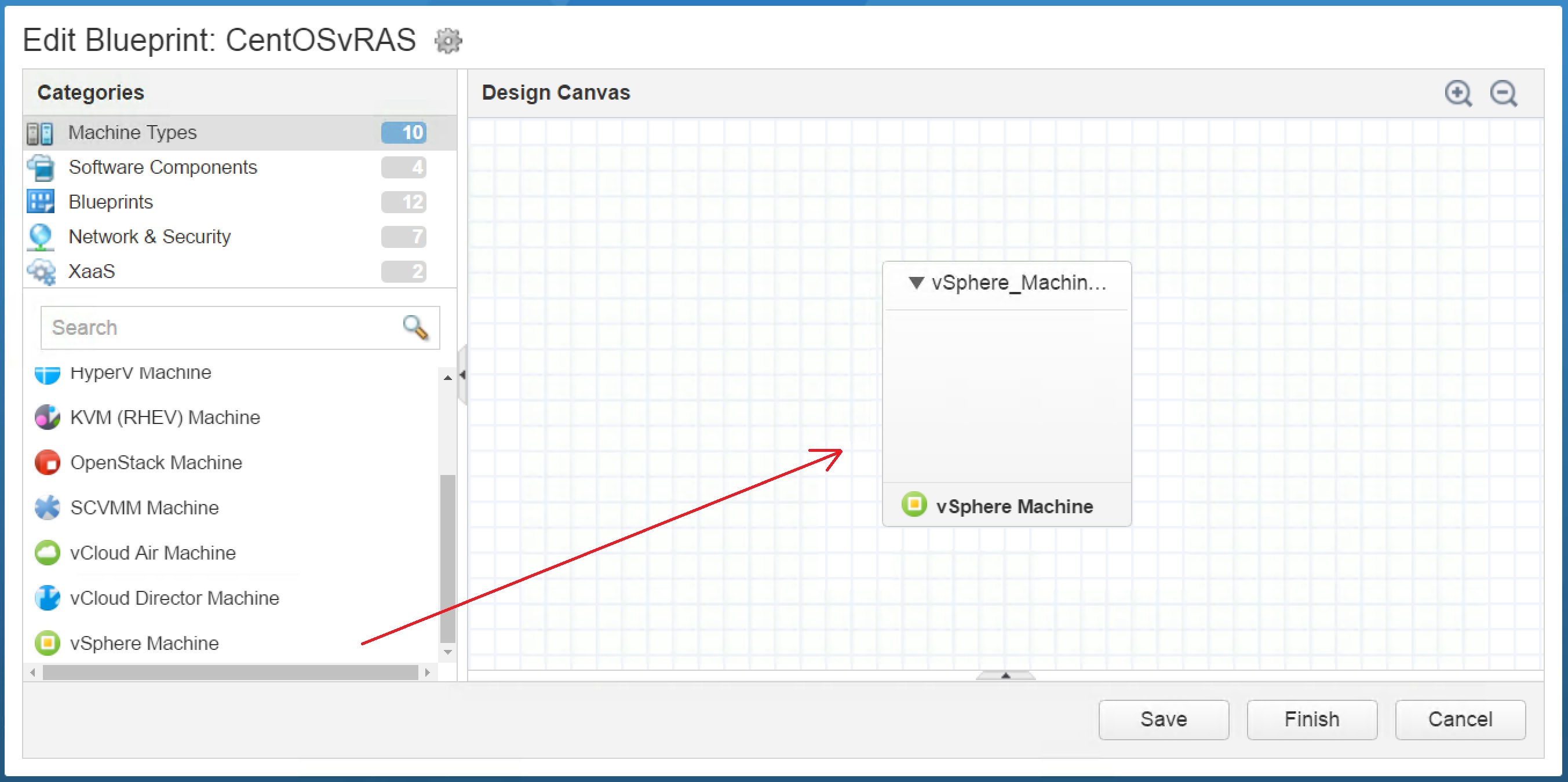
Create your IaaS Blueprint and drag one vsphere virtual machine on the design canvas.
-
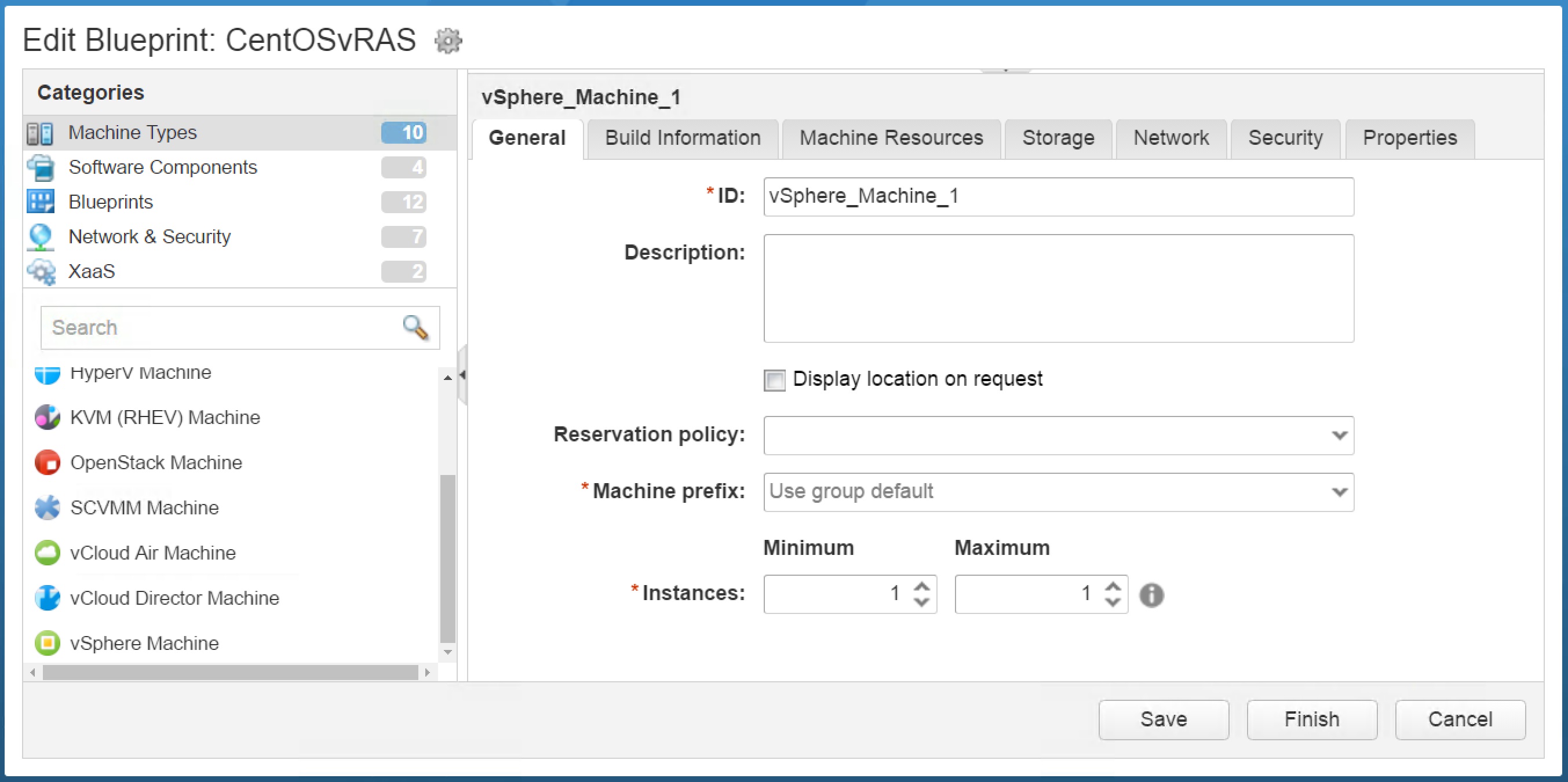
Select the vsphere virtual machine now and you will see the General tab of it’s configuration.
-
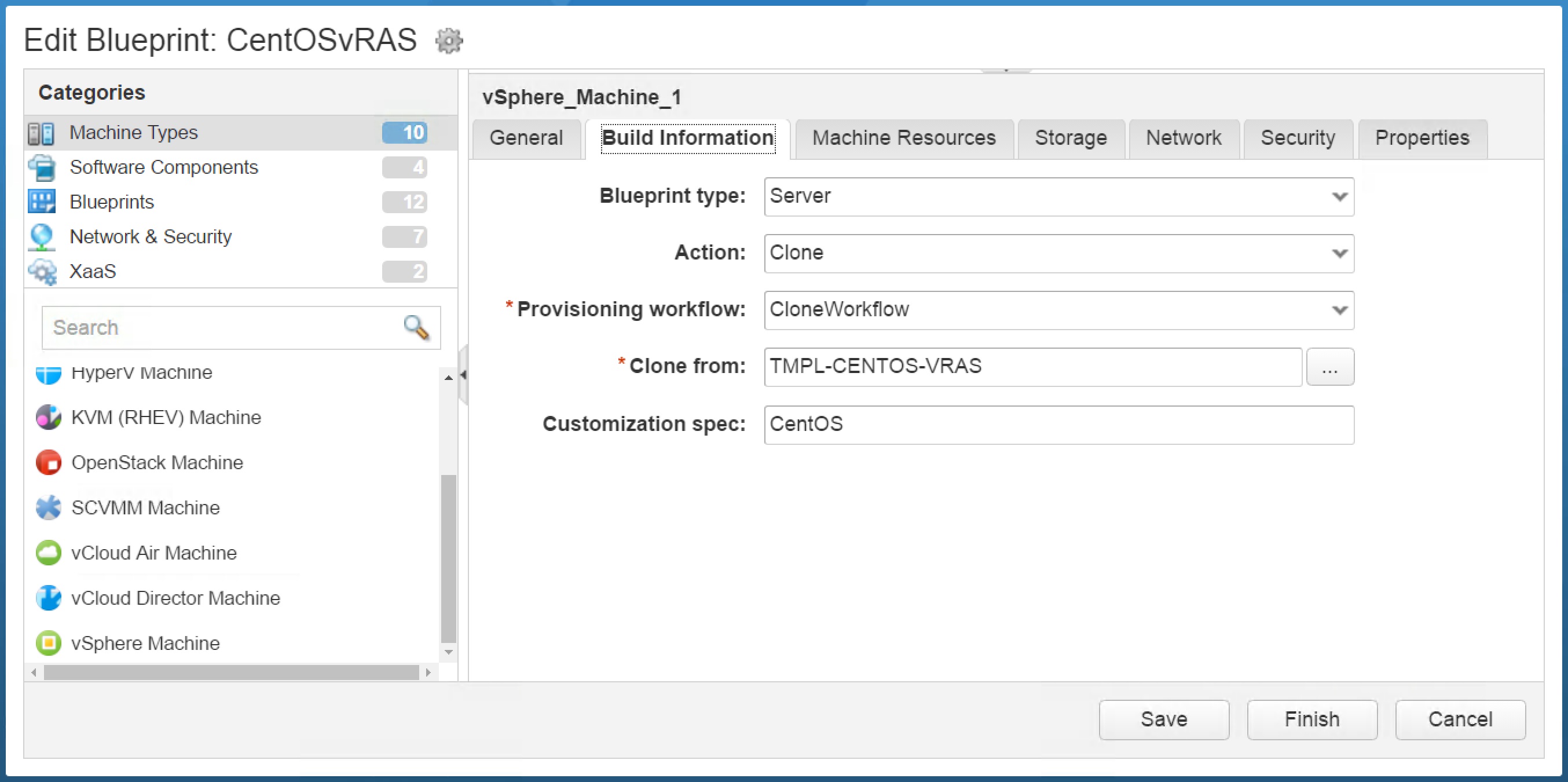
Click on the Build Information tab and specify your vsphere template as below example. I have chosen for template name TMPL-CENTOS-VRAS because selecting a template is required in this type of blueprint. Even when it is not my intention to use this template at all.
-
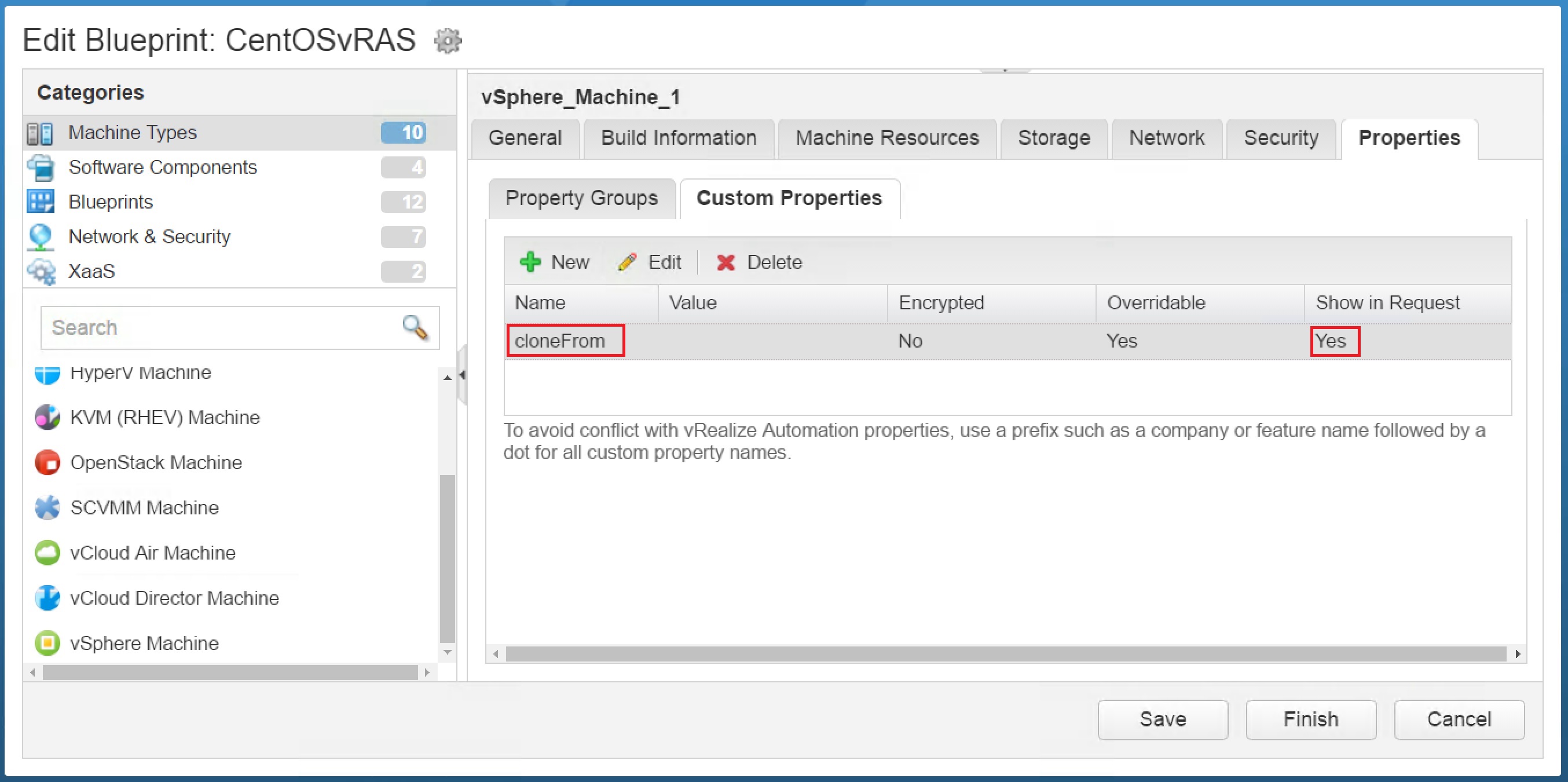
Click on the Properties tab and next click on the Custom Properties sub tab. Add a new custom property with the name cloneFrom and make sure you have enabled the check box Show in Request. Otherwise you will not see this custom property on the request form.
-
You are now done with the IaaS blueprint so click Finish.
-
Next make your blueprint available as a catalog item in your service catalog. (publish your blueprint, assign a service for this new catalog item and make sure it is part of your end users entitlement.)
-
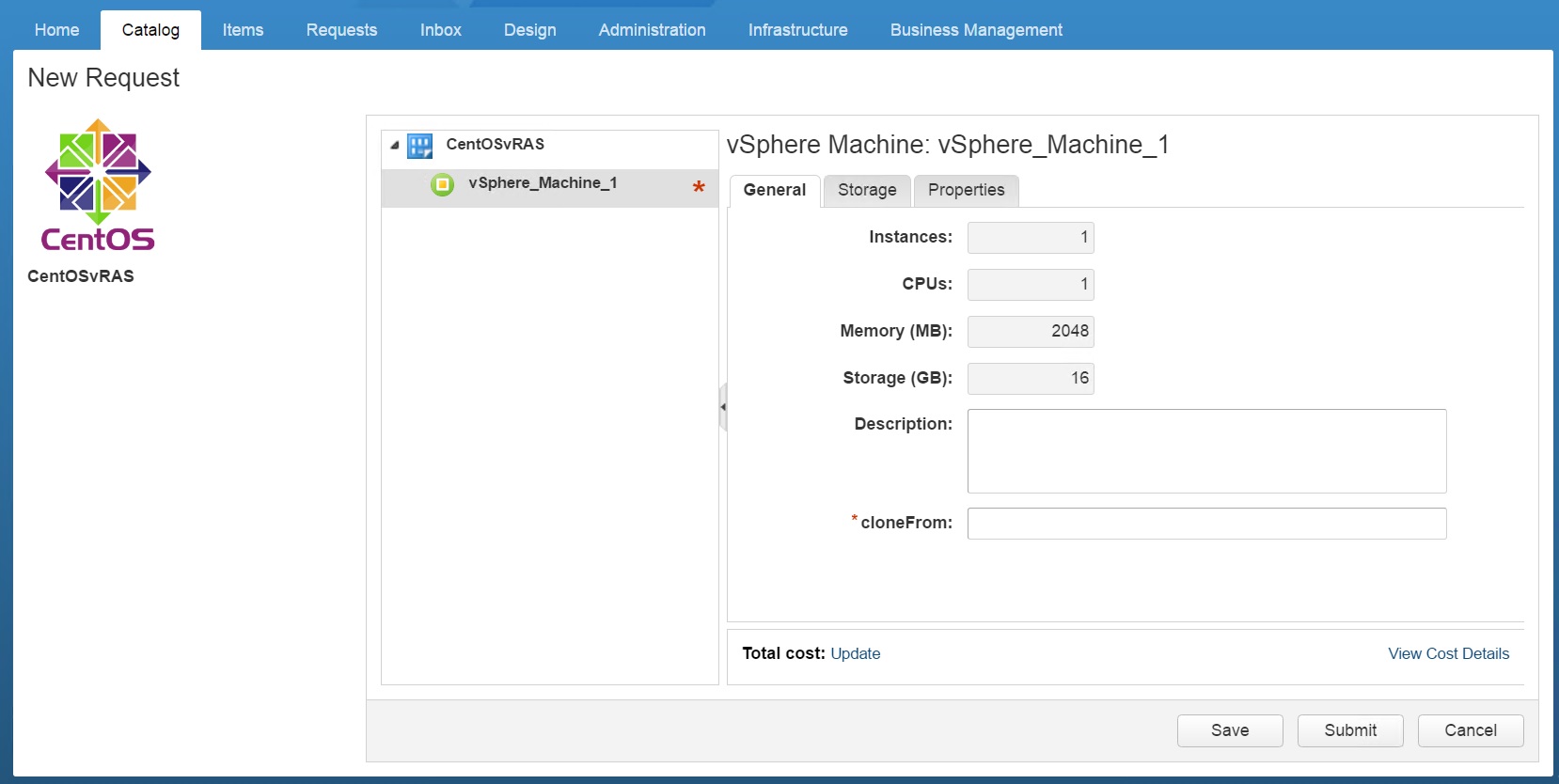
When you request your catalog item now, it will look like the below screenshot.
-
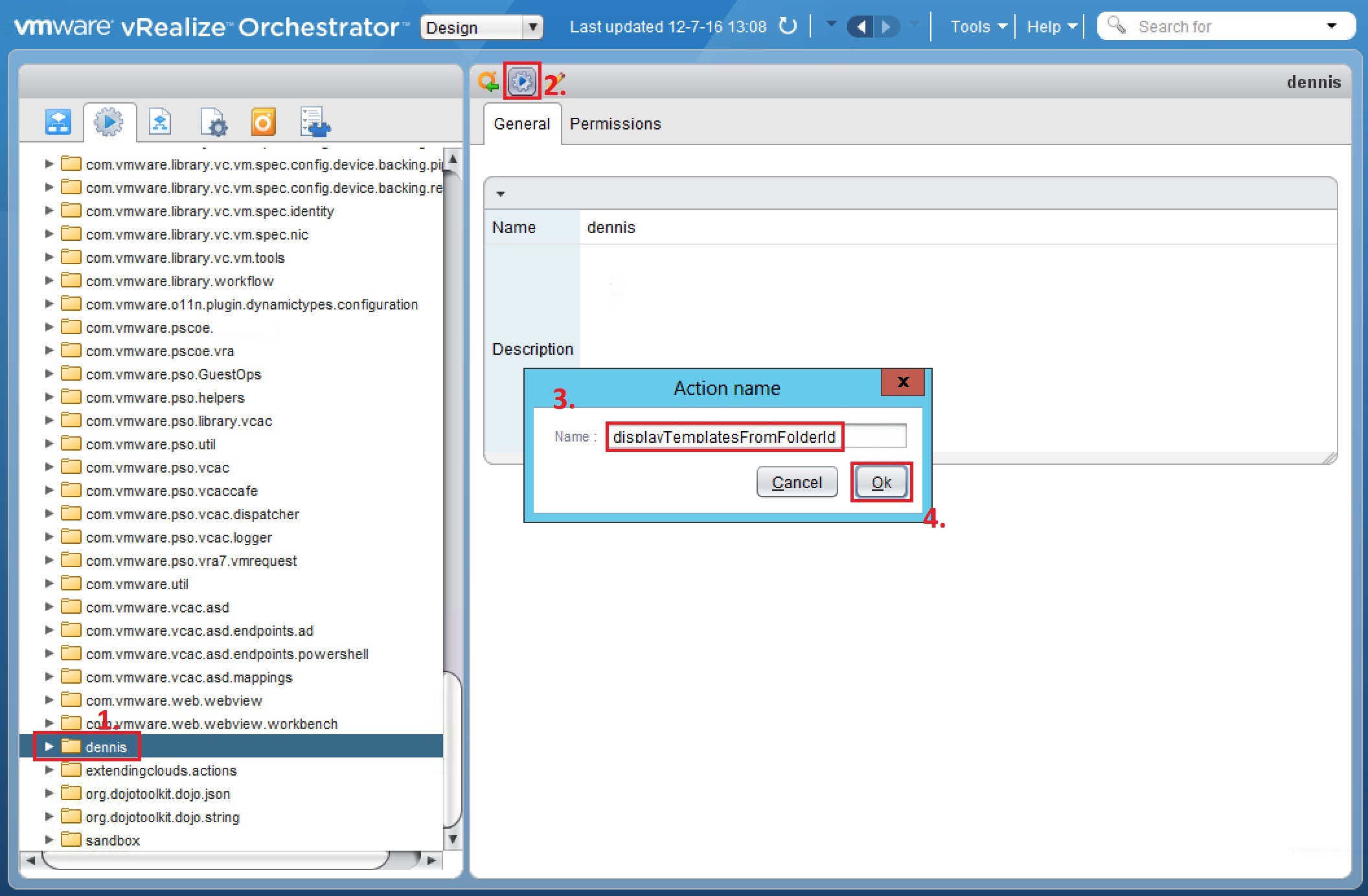
Now it’s time to create your vRO action. So lets open your vRO client, navigate to the action section, select a folder (for where to store your action in), click on create a new action, give it a name (in my example the name is displayTemplatesFromFolderId) and click Ok.
-
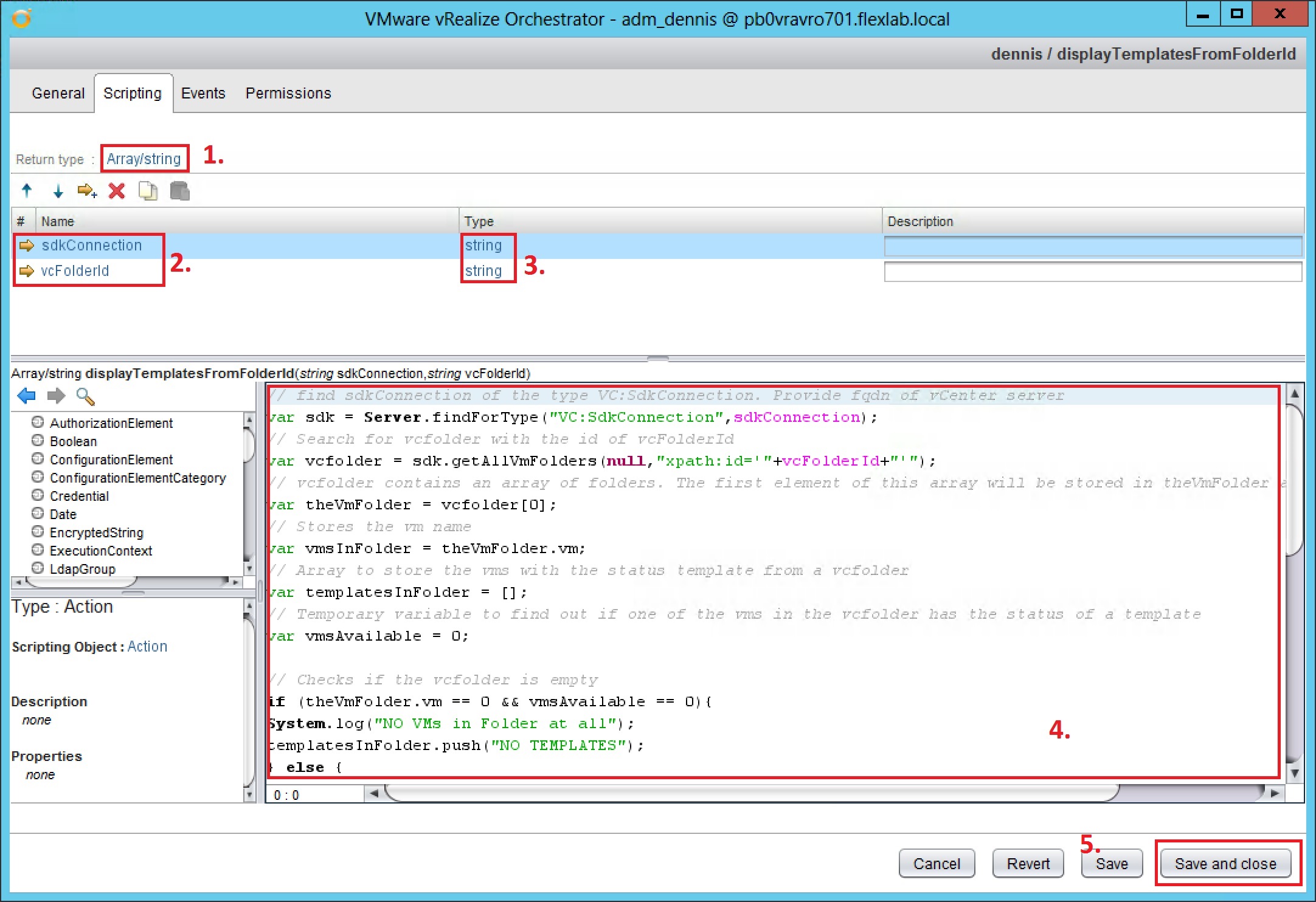
Go to the Scripting tab of your new vRO action. 1. Set your Return type to Array/string 2. Create two attributes. Name one attribute sdkConnection and name the other attribute vcFolderId 3. Make sure the new attributes are of the type string 4. Provide the following JavaScript code:
// find sdkConnection of the type VC:SdkConnection. Provide fqdn of vCenter server
var sdk = Server.findForType("VC:SdkConnection",sdkConnection);
// Search for vcfolder with the id of vcFolderId
var vcfolder = sdk.getAllVmFolders(null,"xpath:id='"+vcFolderId+"'");
// vcfolder contains an array of folders. The first element of this array will be stored in theVmFolder as a VcVmFolder object
var theVmFolder = vcfolder[0];
// Stores the vm name
var vmsInFolder = theVmFolder.vm;
// Array to store the vms with the status template from a vcfolder
var templatesInFolder = [];
// Temporary variable to find out if one of the vms in the vcfolder has the status of a template
var vmsAvailable = 0;

// Checks if the vcfolder is empty
if (theVmFolder.vm == 0 && vmsAvailable == 0){
System.log("NO VMs in Folder at all");
templatesInFolder.push("NO TEMPLATES");
} else {

// Loops through all vms in the vcfolder and stores only vms with the status template in an array of strings
if (vmsInFolder[0].config.template != null){
	for (i = 0; i < vmsInFolder.length; i++) {
		if (vmsInFolder[i].config.template == true) {
    		System.log("VM : "+vmsInFolder[i].name+" Is a template");
    		templatesInFolder.push(vmsInFolder[i].name);
			}
		else {
    		System.log("VM : "+vmsInFolder[i].name+" Is not a template");
			vmsAvailable = 1;
			}
	}
}

// Check if none of the available vms in the vcfolder have the status template
if (templatesInFolder[0] == null && vmsAvailable == 1){
System.log("No Templates in Folder");
templatesInFolder.push("NO TEMPLATES");
}
}

// Resturns and Array of strings with includes all vms in the vcfolder with the status template
return templatesInFolder;
5. Click Save and close
-
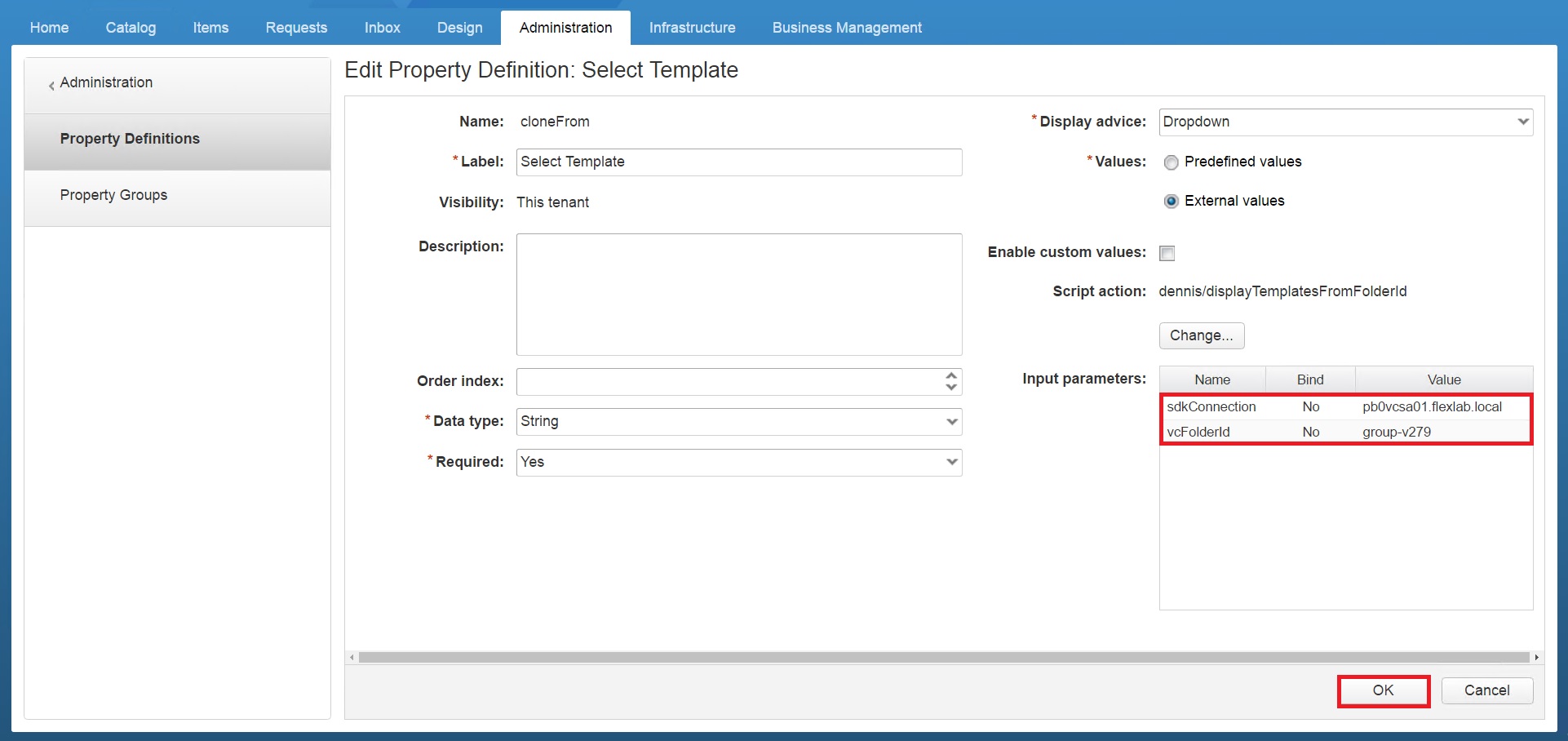
Make a note of your values for sdkConnection (fqdn of your vCenter Server) and vcFolderId (the vCenter folder group-id). In my example, I can find this information in the vRO Inventory section.
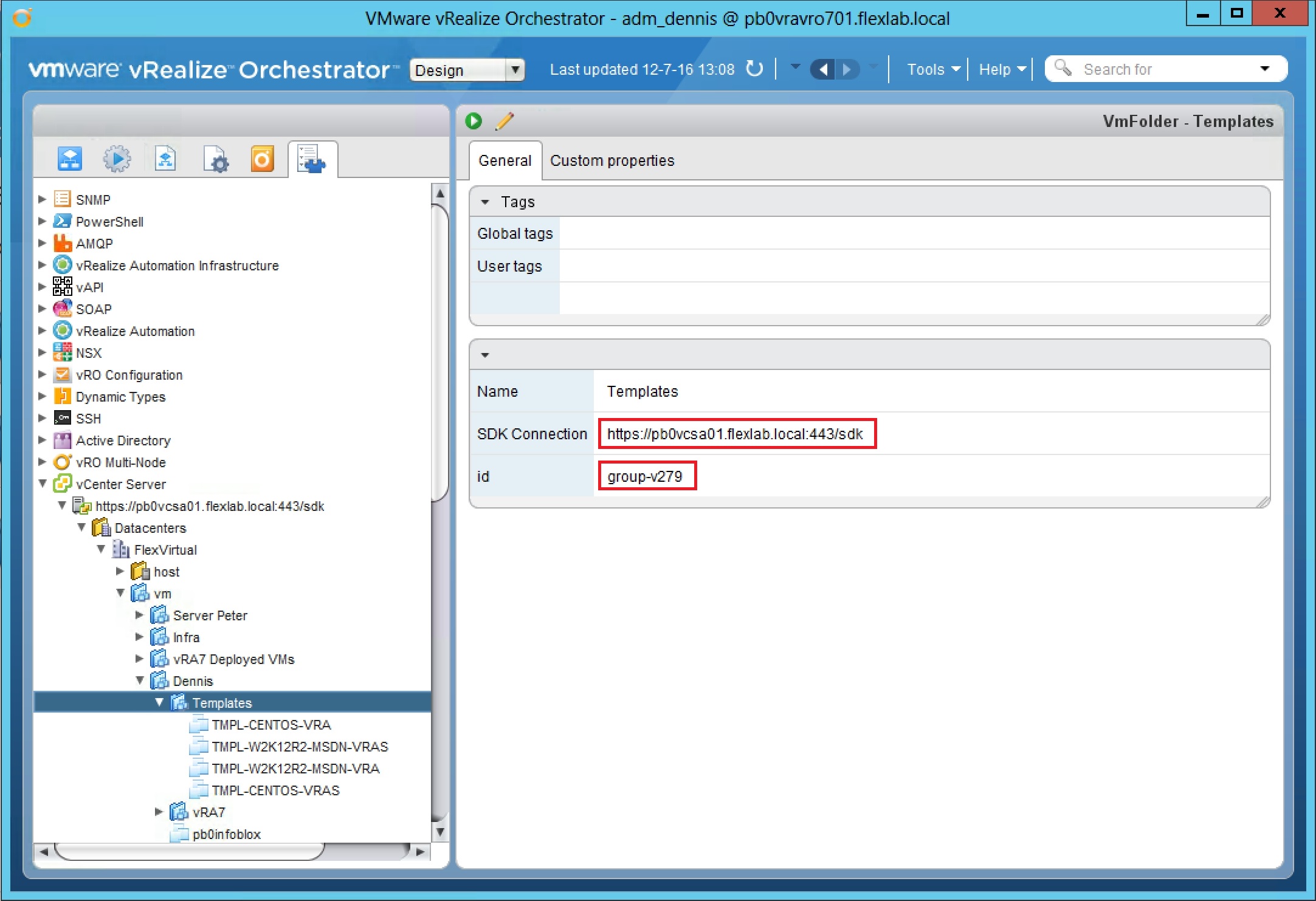
My value for sdkConnection = pb0vcsa01.flexlab.local My value for vcFolderId = group-v279
-
Now lets create a new vRA **Property Definition
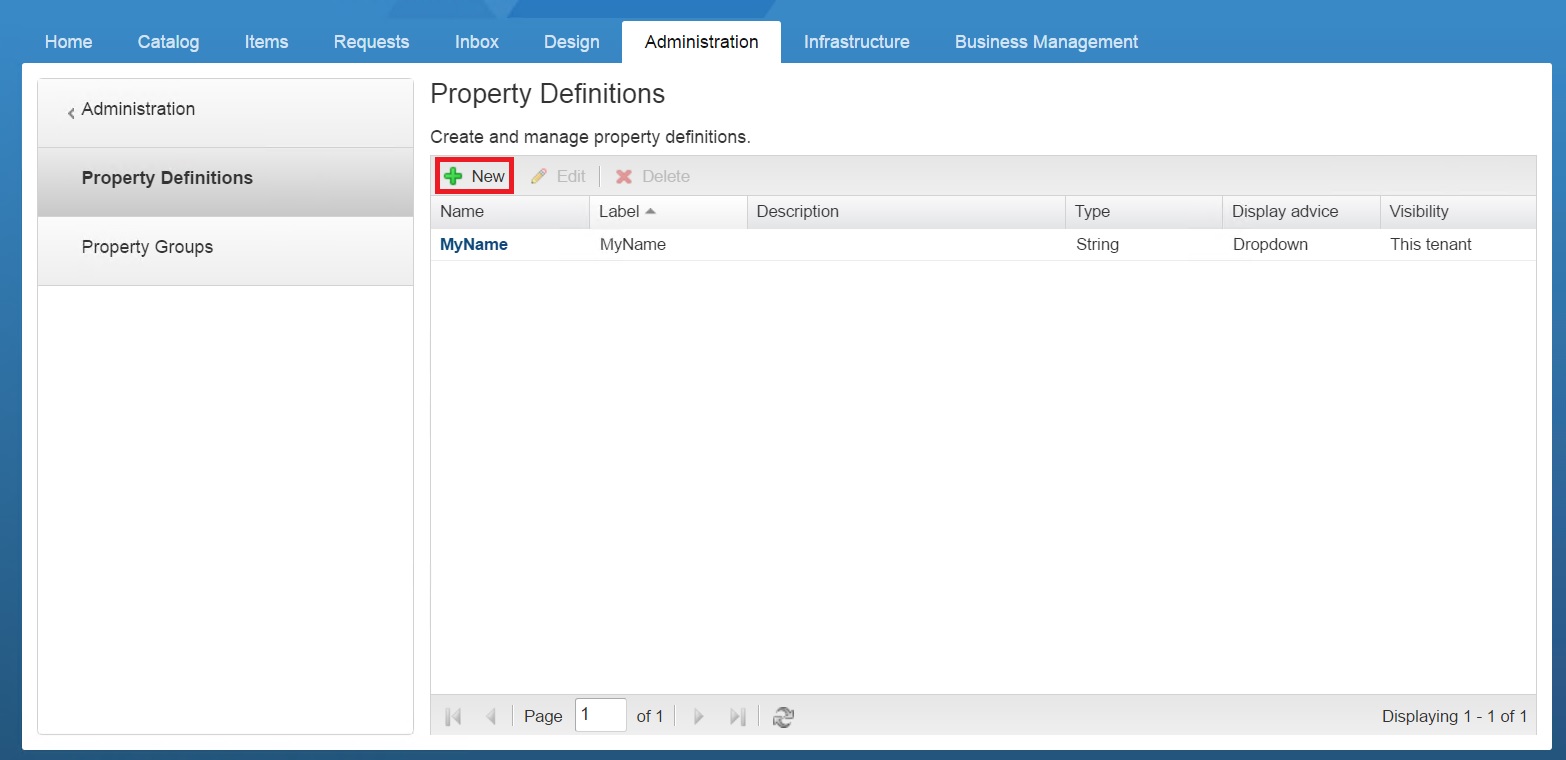
**
-
Follow the detailed steps below 1. Name your Property Definition cloneFrom (This is exactly the name as you used for your custom property configured on the IaaS blueprint) 2. For Label type Select Template 3. For Data type select String 4. For Required select Yes 5. For Display advice select **Dropdown
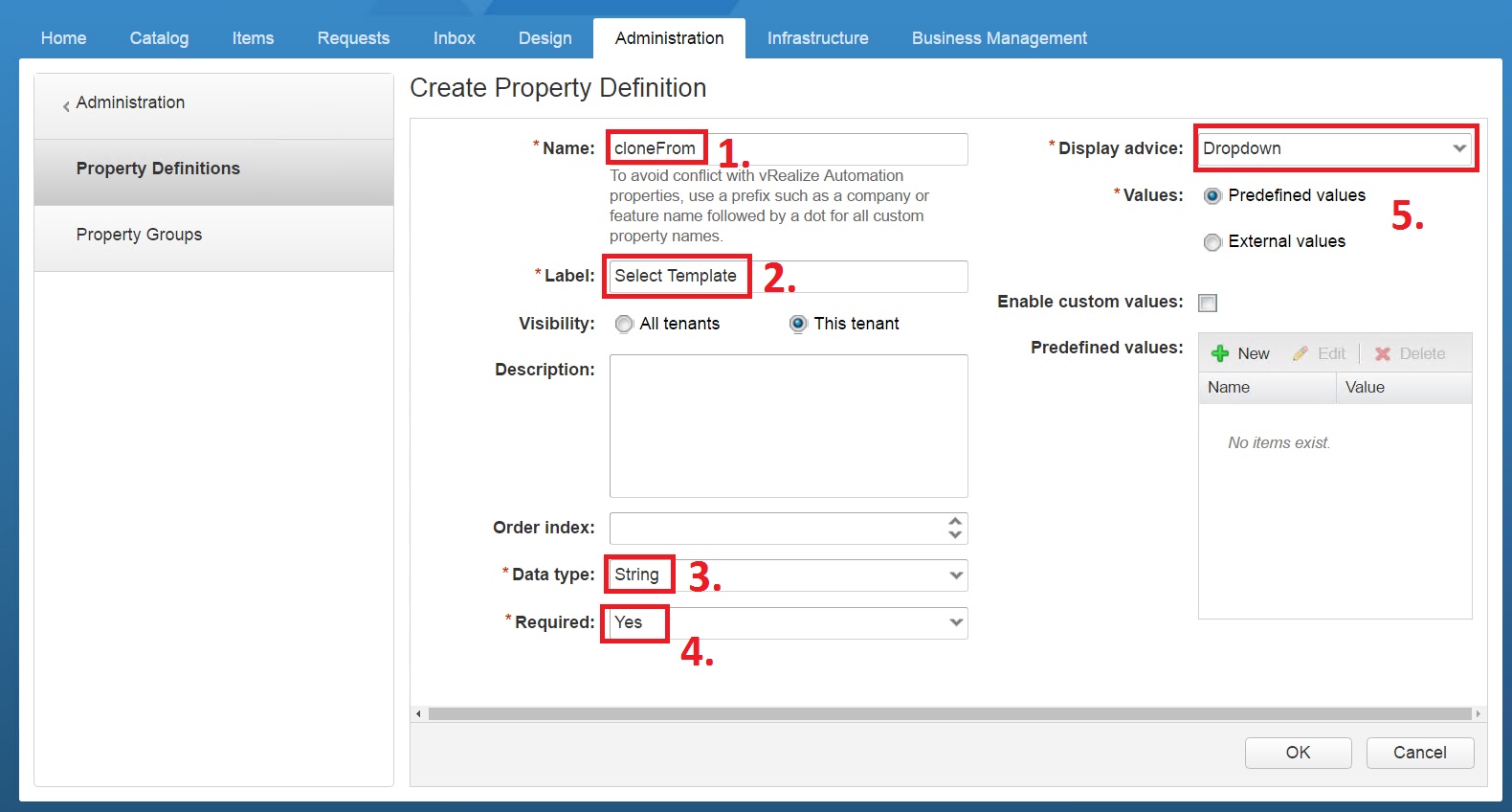
**
-
Instead of selecting Predefined values in the Value section, select External values.
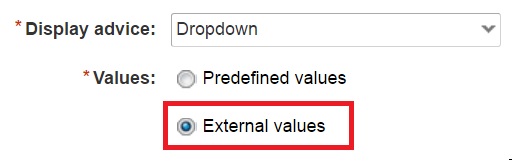
-
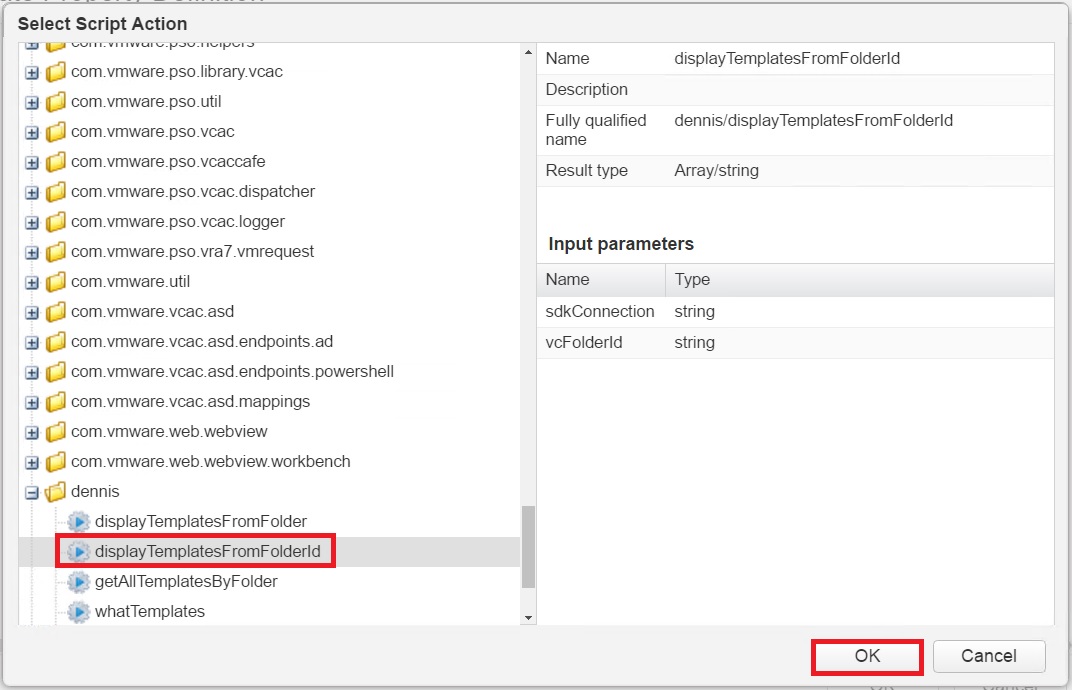
A new window will open where you have to select your newly created vRO action. When selected click Ok.
-
Next populate the values for the Input parameters which have been captured in step 6 and finally click Ok.
-
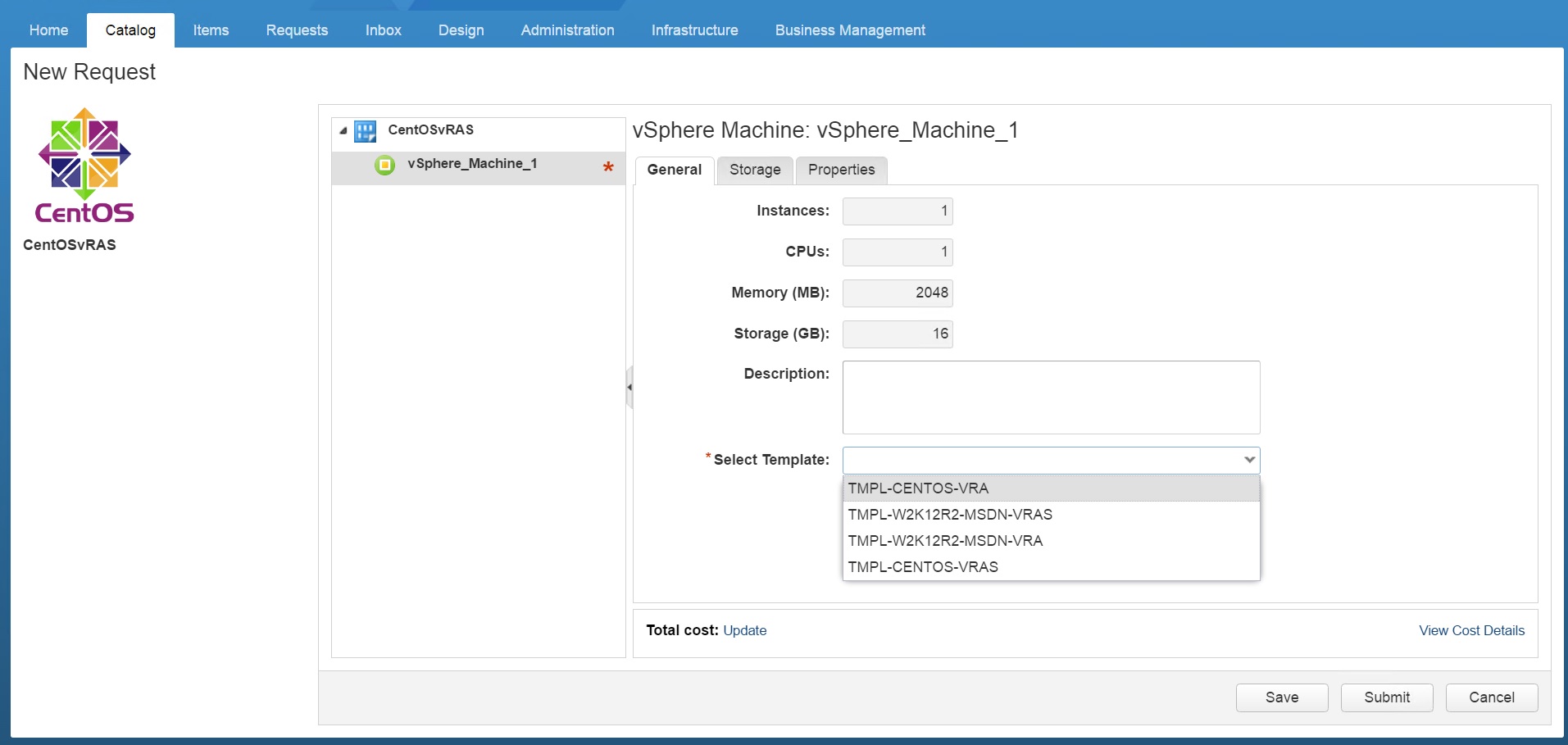
When you now request your catalog item it will look like the below screenshot.
-
Enjoy using vRA 7 !